


Aerial Bundle Extractor VR Simulator

What do you need?
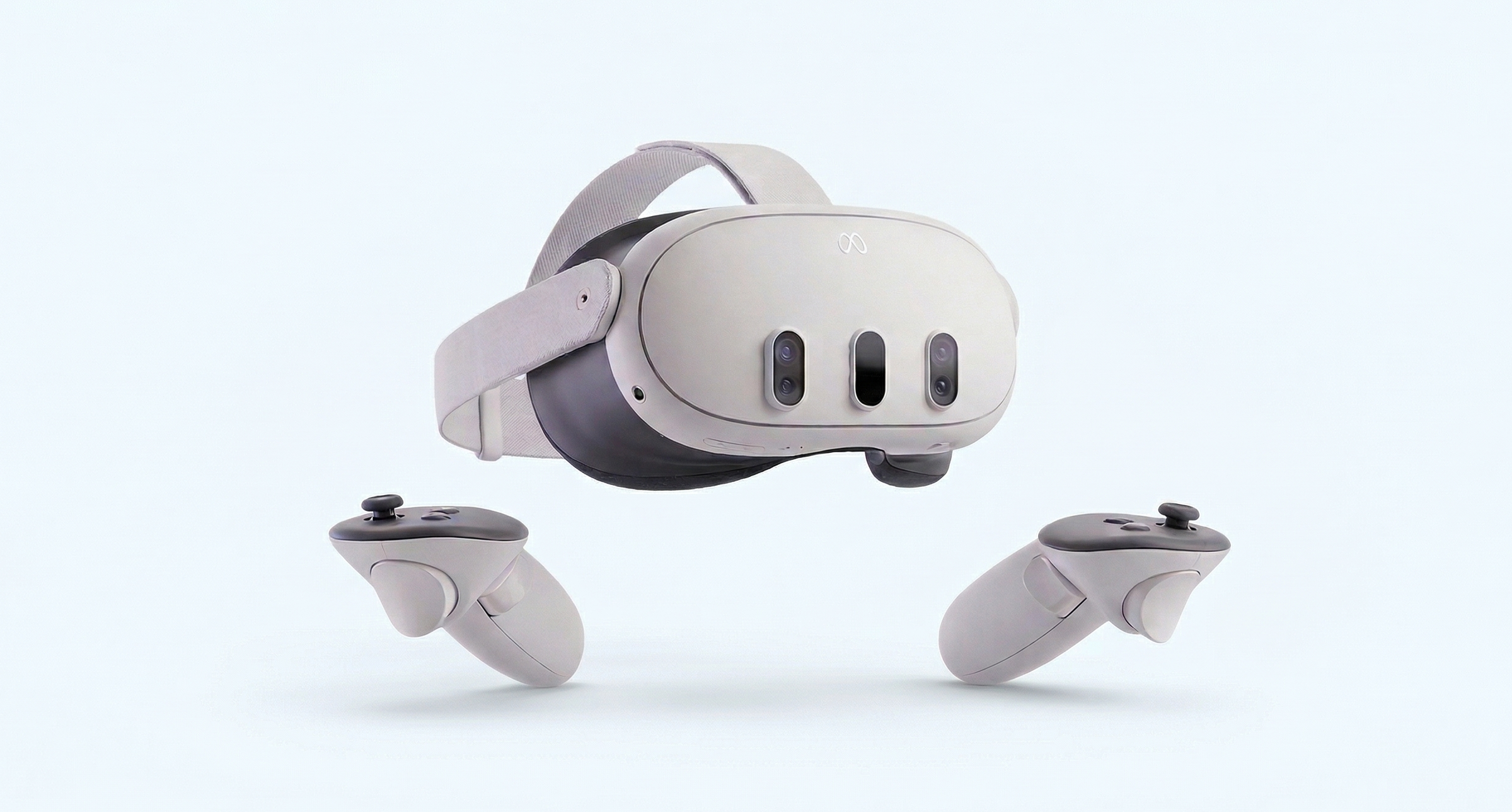
Meta Quest 3
To run the Peinemann ABE Simulator, you require the Meta Quest 3 Mixed Reality headset. This hardware provides the necessary processing power and hand-tracking precision for professional training.
Setup Guide
1.
Contact your distributor: During the headset setup, you will be presented with a unique 8-digit activation code on your screen. You must provide this code to your distributor to link your hardware to the Peinemann platform.
2.
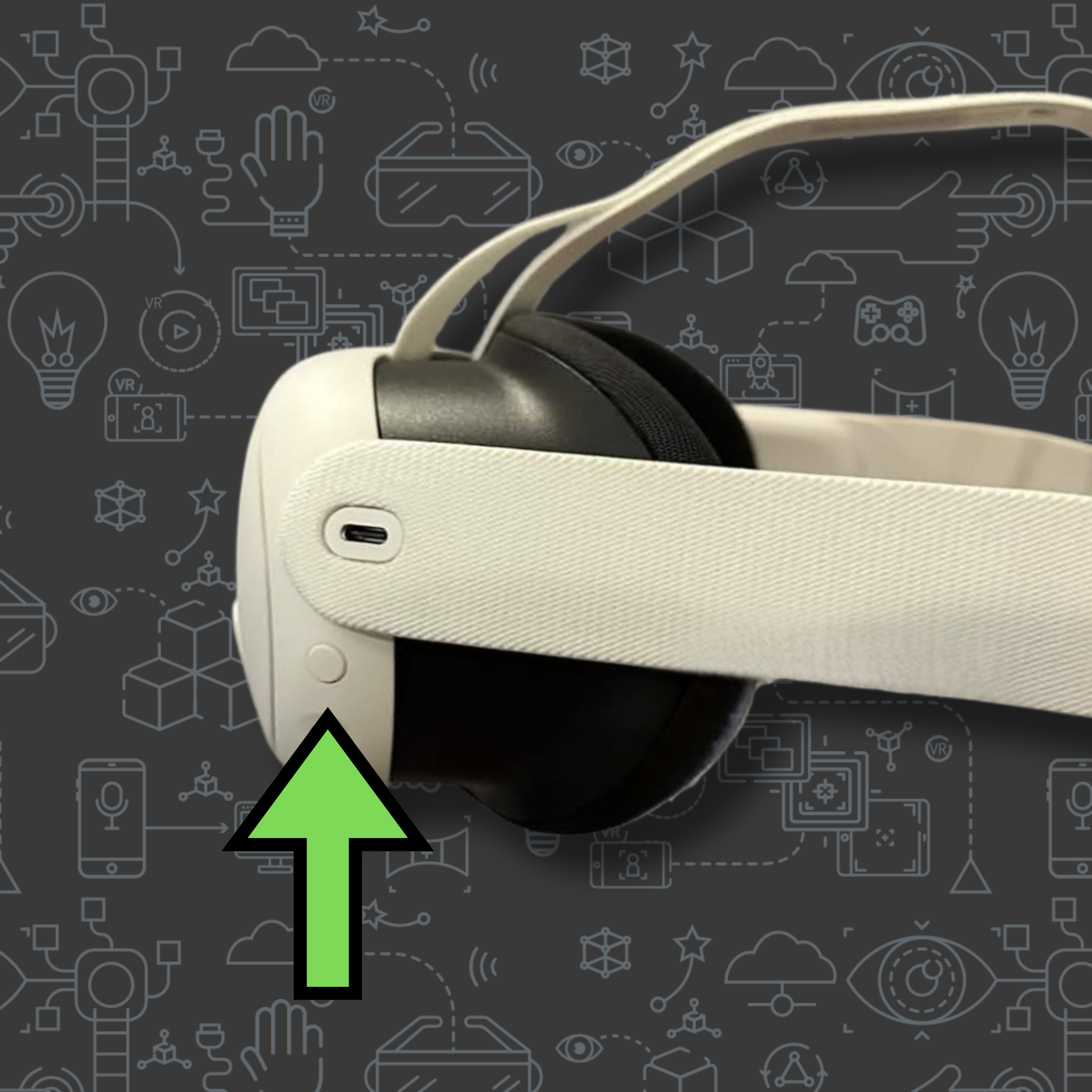
Power Your Headset: Locate the round power button on the left side of the headset. Press and hold for 3 seconds until the Meta logo appears.
3.
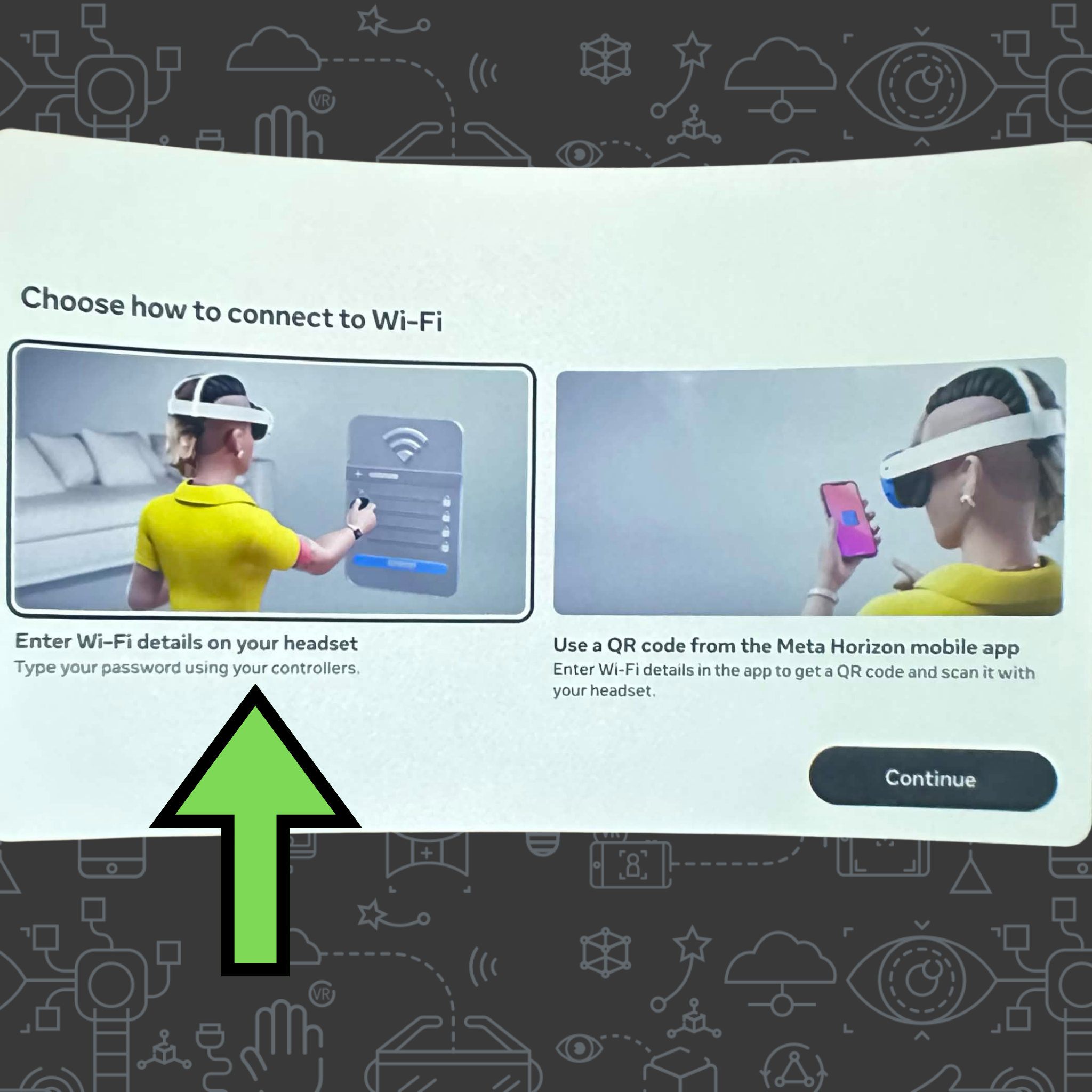
Enter Wi-Fi Details: Follow the on-screen prompts to connect to your local network. A stable connection is required for initial synchronization.
4.
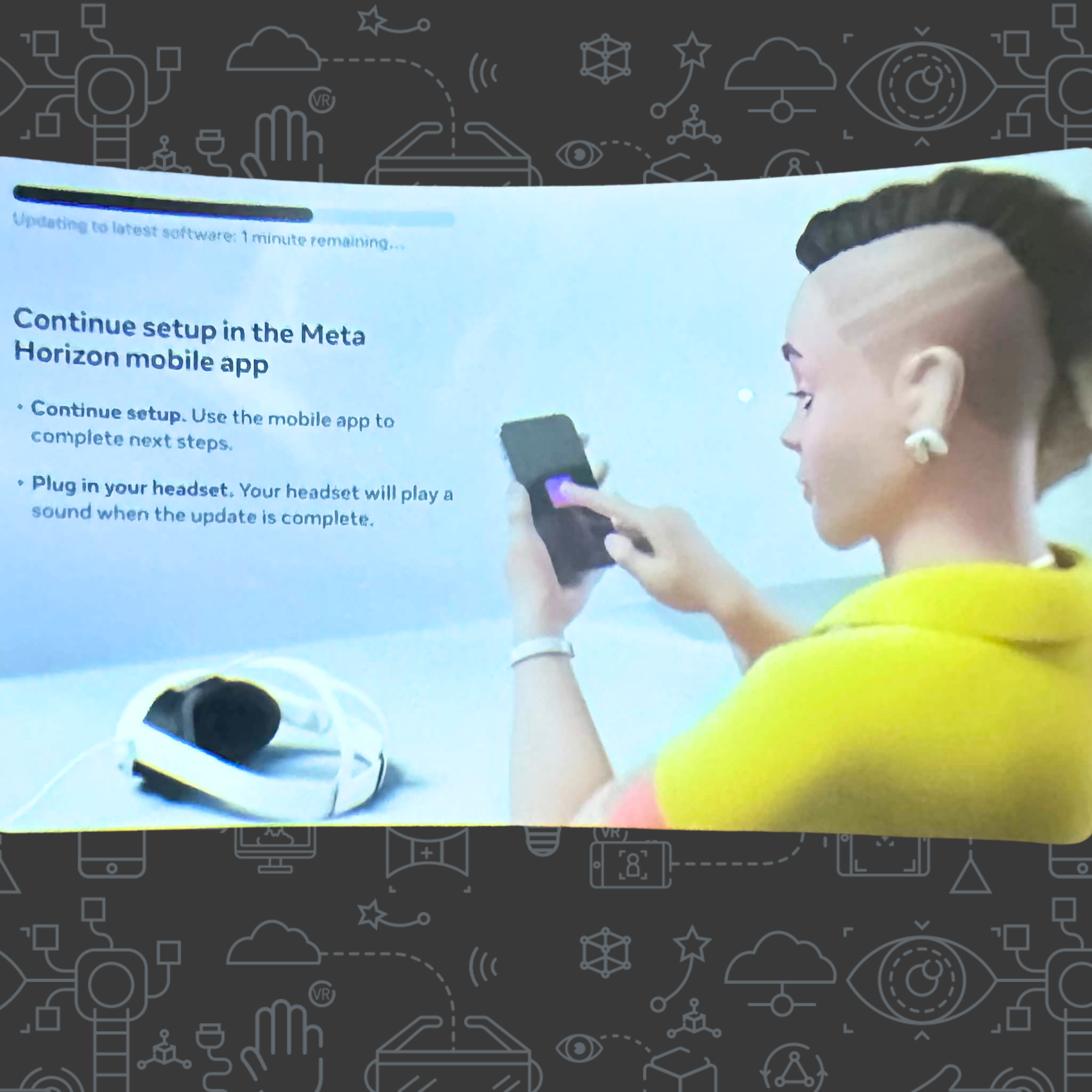
Software Update: Allow the headset to complete any mandatory firmware updates. Ensure the device is connected to a charger during this process.
5.
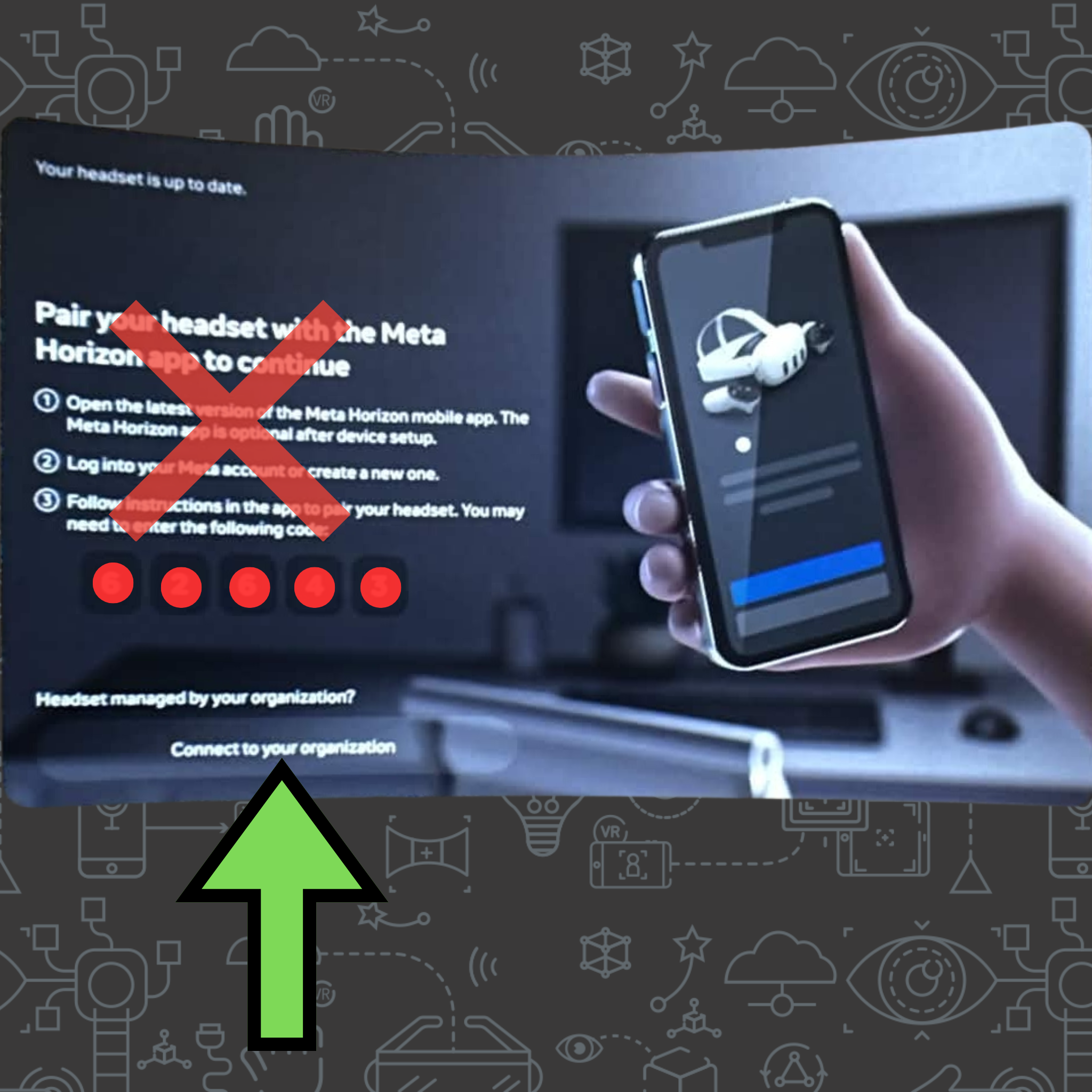
Connect to Organization: Once updated, the headset will prompt you to join the “Managed Organization”. Click on “Connect to your organization” and keep pressing “Continue”
6.
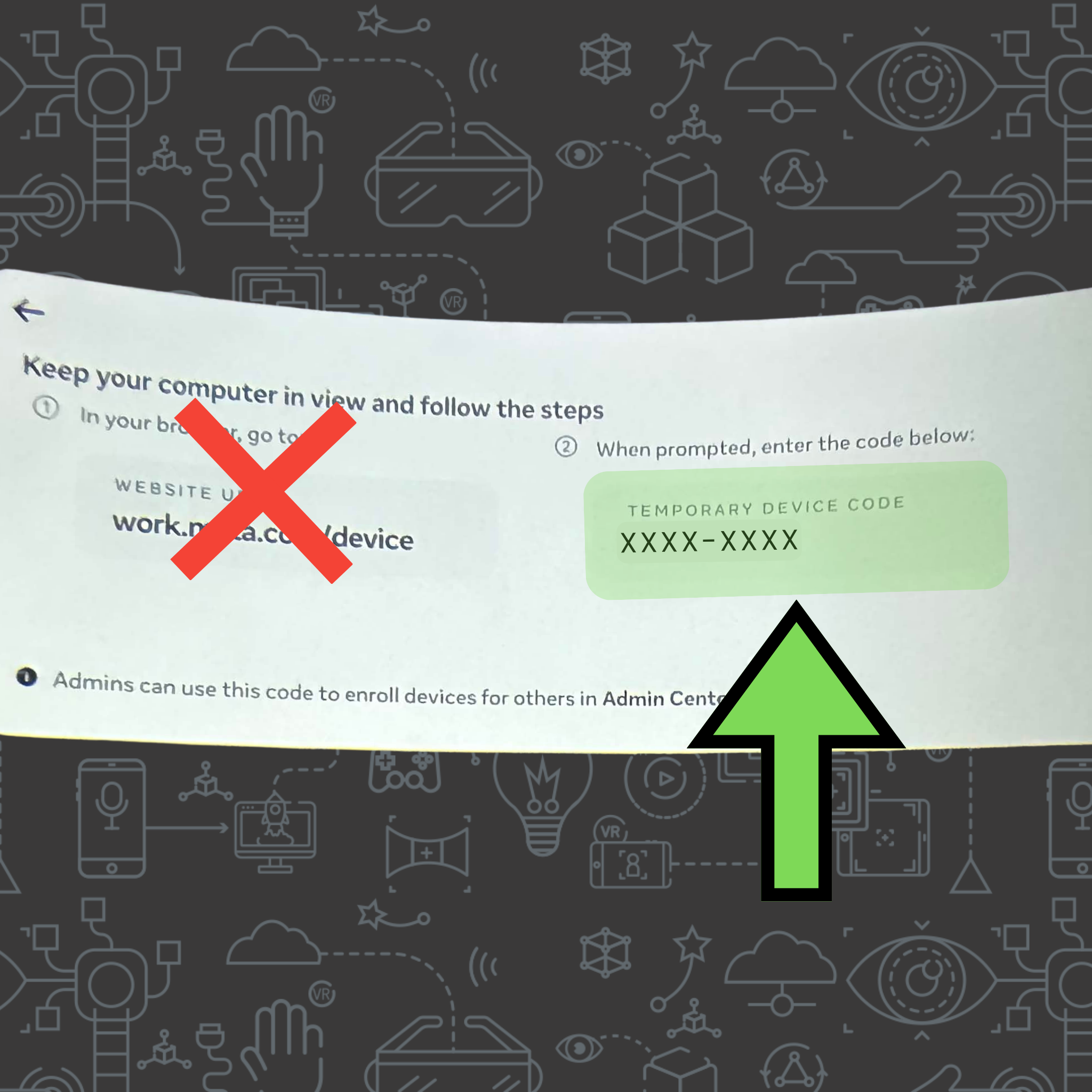
Note 8-Digit Code: Once the device joins the organization, it will display an 8-digit code. Write this down or take a photo; you must provide this specific code to your distributor to activate the device.
7.
Follow On-Screen Instructions: Complete the final calibration steps as prompted inside the lenses.
8.
Repeat for Multiple Units: Repeat steps 1–7 for each individual headset.
9.
Controller Management: For the most immersive experience, we utilize Meta’s advanced Hand Tracking capability. To ensure the system prioritizes your hand movements, be sure to remove the batteries from the controllers and store in a safe place.
User Onboarding
Guide 1: Meta System Specifics
Boundary Selection
Choose Room-scale if you have a clear floor space of at least 6.5ft x 6.5ft.
Choose Stationary if you are training in a restricted space or while seated.
Youtube: https://youtu.be/oBHk-kZfZ1Q
Universal menu & Recentering
To open the menu, face your right palm toward you and pinch (tap index finger and thumb).
To recenter your view, pinch & hold for two seconds.
Youtube: https://youtu.be/VuiaIaIN9WM
Selection Gesture
A white ray will project from your hand. Target the desired button and pinch & release to click.
Youtube: https://youtu.be/BGSiMC2Rr2U
Guide 2: Peinemann ABE VR Experience specifics
Physical Button Interaction
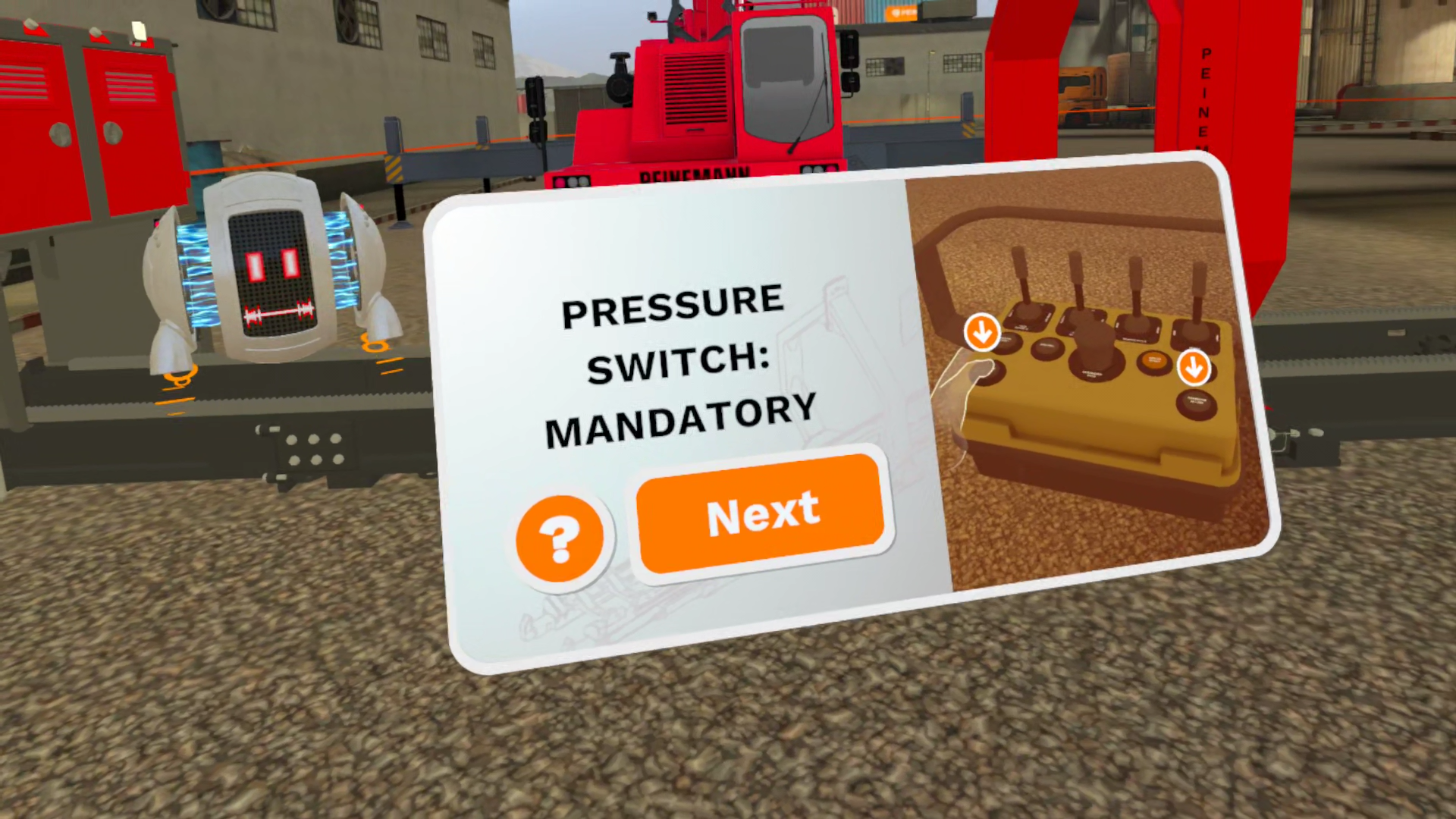
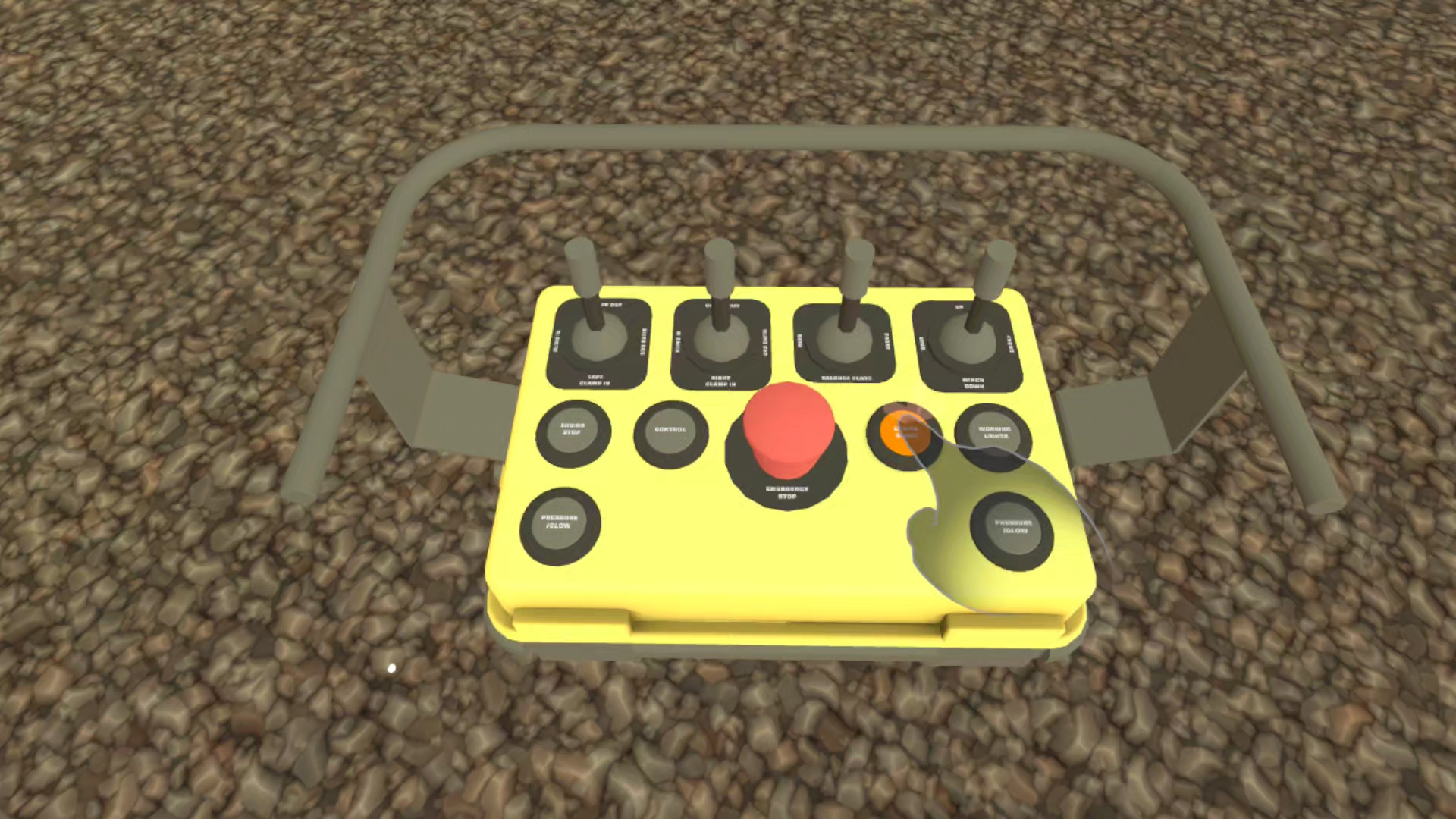
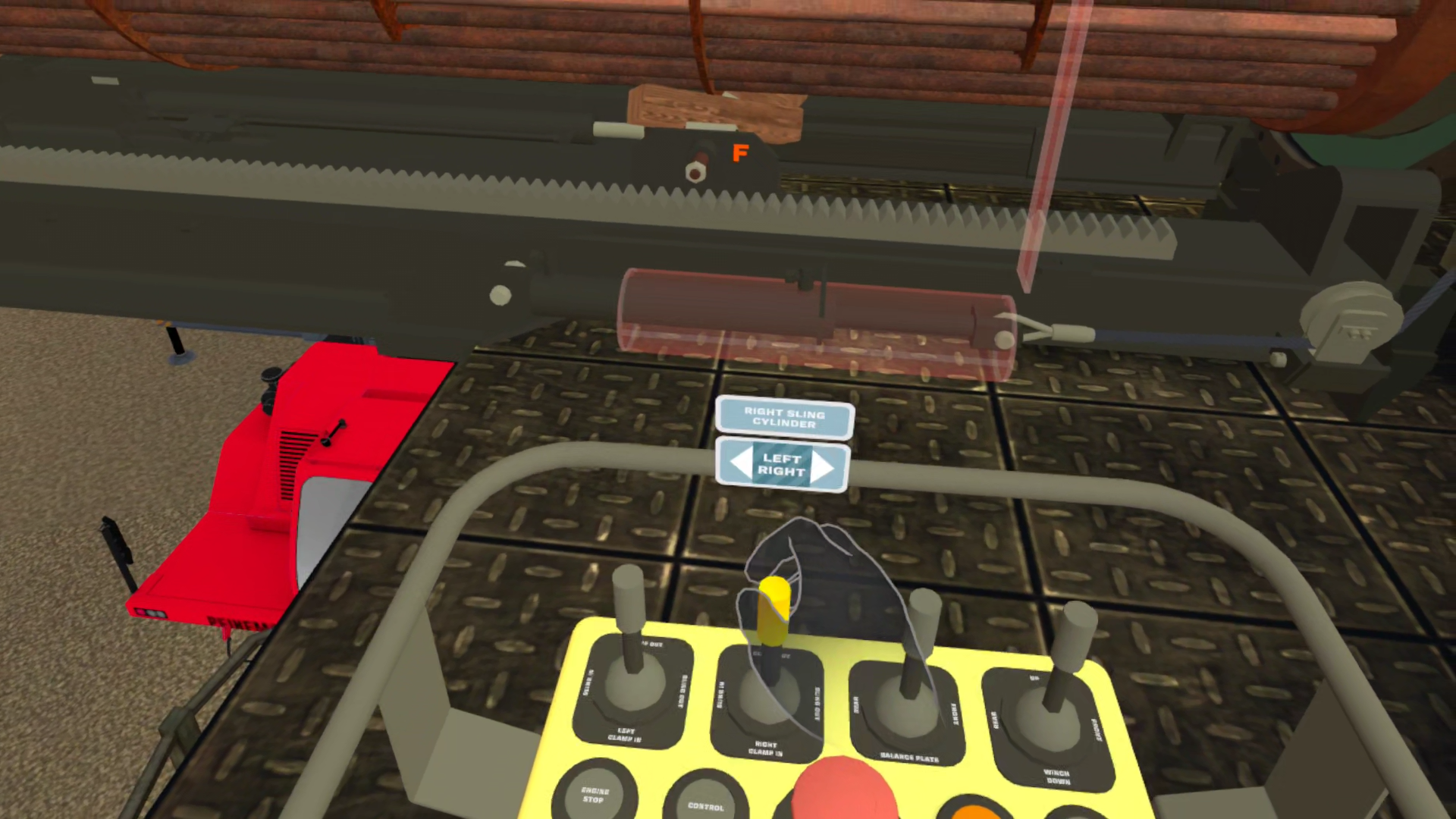
Within the simulator, you can interact with control panels naturally. Use your index finger in a forward pushing motion to press virtual buttons.
Youtube: https://youtu.be/PnSoiqZLtBU
Exiting the Experience
To quit, perform the Right-Hand Pinch & Release to open the Universal Menu and select "Quit".
Youtube: https://youtu.be/ldoOYokf6Xc
FAQs
-
Contact at: [email protected]
-
The screen is black, but the headset is on.
i. Press the power button once (do not hold) to wake the device from standby mode.Why can’t I see my hands?
i. Ensure your hands are within the tracking cameras' field of view.
ii. Check that the room is not too dark for the sensors to operate.
iii. Ensure the four tracking cameras on the front of the headset are not covered or dirty.
iv. Ensure hand controllers have batteries removed and are stored away.Why does the ArborXR menu say "No Internet Connection"?
i. Check Wi-Fi settings in the ArborXR home menu. A connection is mandatory to receive updates for the Peinemann ABE VR Experience.
-
What is the best way to clean the equipment?
i. Use alcohol-free, antibacterial wipes on the face pad and outer plastic shell.
ii.CRITICAL: Use only a dry, optical-grade microfiber cloth for the lenses. Never apply liquids or chemical cleansers directly to the lenses.What should I do if the headset feels blurry or out of focus?
i. Physically move the headset up and down on your face until the text is sharp.
ii. Use the lens spacing wheel on the bottom left of the headset to change the distance between lenses until visuals are clear.Where should I store the headset when I'm finished?
i. Turn the headsets completely off and store them in a dark area.
ii. WARNING: Keep lenses away from windows; direct sunlight will cause permanent burn damage to the internal screens.How do I turn the headset on and off?
i.To Power On: Press and hold the power button on the left side of the headset for three seconds, or until you hear a chime and see the Meta symbol appear in the lenses.
ii.To Power Off: Press and hold the power button for five seconds until you hear the "power off" sound and the internal screens go dark.How long will the battery last during use?
i. You can expect between 2 to 2.5 hours of continuous use for the Meta Quest 3 when fully charged.
ii. To preserve battery longevity, ensure the headset is turned completely off before storing it in a dark area away from light.What should I do if the headset is not powering on?
i. Connect the headset to the provided power adapter and charging cable; ensure it is fully charged before attempting to power it on.
ii. If the unit is unresponsive, press and hold the power button for 30 seconds.Why should I take the batteries out of the controllers?
i. Removing the batteries when not in use ensures the Meta system prioritizes Hand Tracking over the controllers.
-
What if the experience "glitches" or stops responding?
i. Hold the power button on the right side for 5 seconds until you hear the power-off sound. Wait 30 seconds, then hold the button again until the Meta logo appears.How do I re-center my view inside the Experience?
i. To recenter, face the direction you want to be "forward" and perform a Left-Hand Pinch & release gesture (tap index finger and thumb together) to open the Advanced Menu, and click on Recenter button.How do I skip dialogue or turn on subtitles?
i. Access the Advanced Menu via the Left-Hand Pinch gesture.
ii. Click the Settings Icon and the following options should appearSkip Dialogue [Default: Off]
Enable Subtitles [Default: Off]
How do I jump to a different part of the training?
i. Access the Advanced Menu via the Left-Hand Pinch gesture.
ii. From here, you can select specific scenes to jump betweenPage 1: Extraction Scenes
Page 2: Insertion Scenes
Page 3: Main Menu, Walkaround, or the Tutorial.
-
What is the ArborXR Home?
i. It is the simplified "Kiosk" menu designed to help you find the Peinemann training immediately without navigating standard Meta menus.How do I return to the ArborXR dashboard from inside the training?
i. Face your right palm toward your face
ii. Tap your thumb and index finger together (pinch) to open the Universal Menu
iii. Select the "Quit" option to exit the simulator and return to the dashboard.How do I launch the experience?
i. Point your hand at the Peinemann ABE VR Experience icon.
ii. To "click" and start, simply pinch your index finger and thumb together.What if the app says "Downloading" or "Waiting"?
i. First, verify that your headset is successfully connected to Wi-Fi.
ii. The experience is likely receiving a mandatory software update through the ArborXR portal; stay connected until the progress bar completes.